INSTALL GUIDE
Open the macOS beta safely
How to open the FolderAsk beta on macOS when Gatekeeper blocks the app the first time.
Last updated: April 8, 2026
Because FolderAsk is currently distributed as a beta build, macOS may block it the first time you try to open it.
This usually happens even after the app has been downloaded successfully. You can allow the app manually from Privacy & Security and then open it normally.
Steps
Download the macOS build and try to open it once
Download the latest `.dmg`, install FolderAsk into Applications, and open it once.
macOS may show a warning that the app cannot be opened because it could not be verified. Click `Done` first, then continue with the steps below.
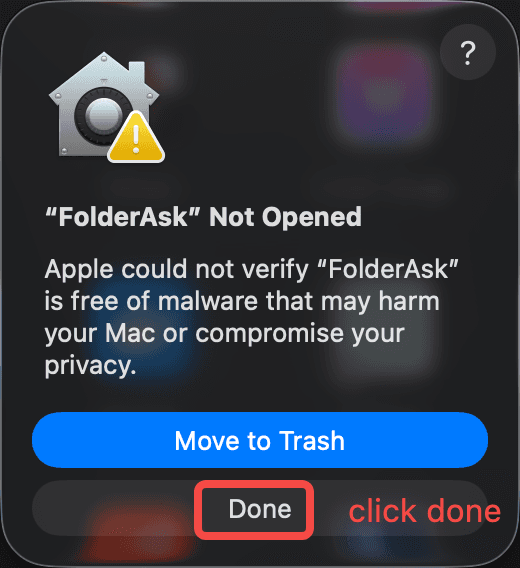
Blocked app warning
After this first warning appears, click `Done` and then go to System Settings.
Open System Settings > Privacy & Security
Scroll down to the Security section after the failed launch attempt.
You should see a message saying FolderAsk was blocked from use because it is not from an identified developer.
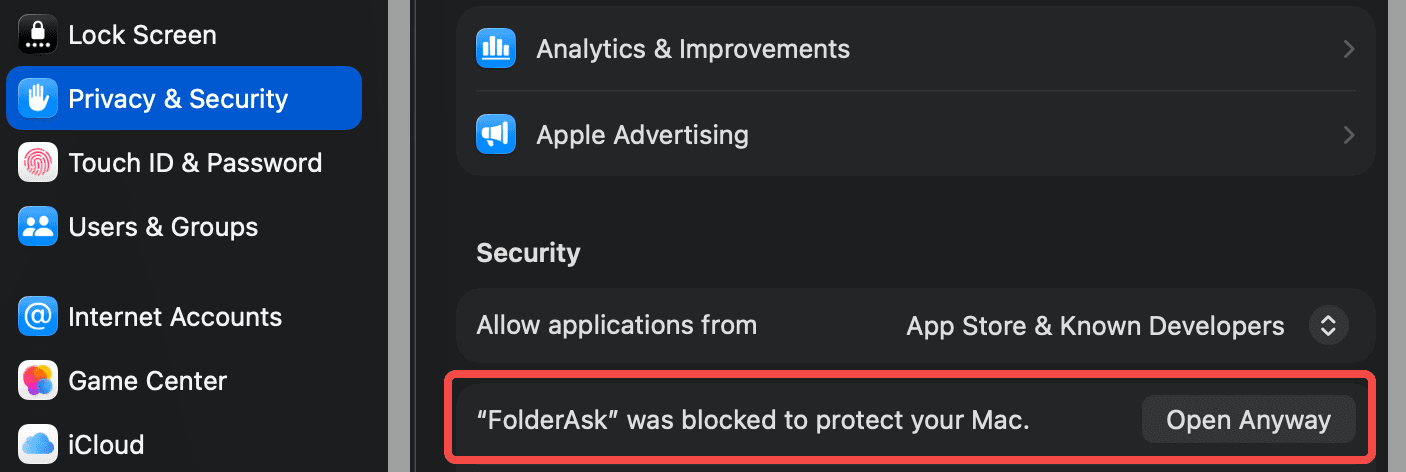
Privacy & Security panel
Scroll to the Security section until you see the message that FolderAsk was blocked.
Click Open Anyway
After confirming that the app came from the official source, click `Open Anyway`.
macOS may ask for your password or Touch ID before continuing.
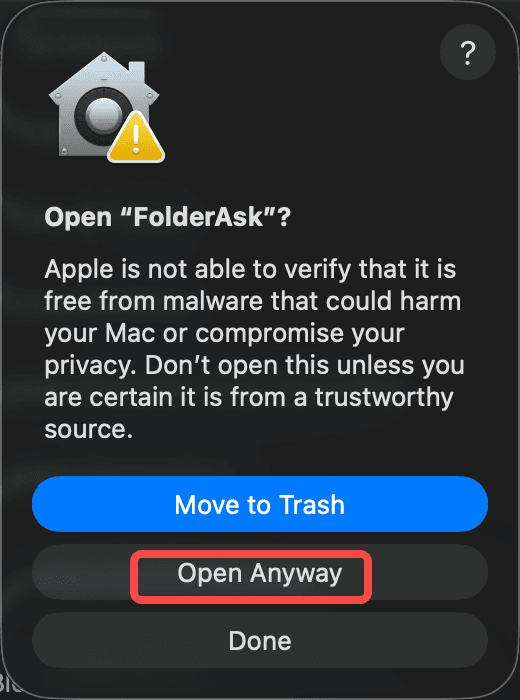
Open Anyway action
Use `Open Anyway`, then finish the system confirmation flow.
Confirm the second dialog and launch FolderAsk
A second confirmation dialog may appear. Choose `Open` to finish the process.
After that, FolderAsk should launch normally and can usually be opened directly next time.